How to Turn an AI Track Into a Real Arrangement You Own (2026)
A 2026 workflow for taking an AI-generated track, exporting stems, and rebuilding it in your DAW into an arrangement that's genuinely yours.

A prompt gets you a song in seconds. It does not get you your song.
AI generators are excellent at sketching ideas. They produce a finished-sounding track fast. But that track is a starting point, not a master. The structure is often generic, the sounds are samey, and creatively it still belongs to the machine.
This guide takes the next step. We pull an AI draft into your DAW and rebuild it into an arrangement you genuinely authored. You will re-structure the sections, swap in real sounds, write your own MIDI, and mix it with intent. The goal is simple: keep what the AI got right, and replace what makes it sound like everyone else's output.
Why Rebuild an AI Track at All?
Three reasons.
First, structure. AI songs tend to follow predictable templates: intro, verse, chorus, repeat. Real arrangements breathe. They build tension, drop out, and surprise the listener.
Second, ownership. The more of your own performance, MIDI, and processing you add, the more the final piece is creatively yours. That changes how the track sounds and how you feel about releasing it.
Third, quality. Generated mixes are competent but flat. Once the parts are separated, you can mix each element with purpose and make it actually shine.
What You Need Before You Start
- An AI-generated track you want to develop.
- A DAW. Ableton Live, Logic Pro, FL Studio, or Bitwig all work fine.
- Access to stem export from your generator. As of mid-2026, Suno Studio, on the Premier plan, exports individual WAV stems plus optional MIDI for melodic parts. Availability shifts with platform and licensing changes, so confirm current options before you commit (more on this below).
- A handful of your own instruments or sample packs. Browse fresh material at Loopcloud or Loopmasters if your library feels thin.
A Quick Note on Which Generator Exports Stems
This matters in 2026. Suno's Studio environment can split a track into separate WAV stems and export MIDI from melodic parts, which is exactly what this workflow needs.
Udio is a different story right now. Following its partnership with Universal Music Group, Udio disabled downloads, including audio, video, and stems, while it transitions to a licensed model. Its in-app editing tools, like region-based inpainting, are powerful for shaping a song inside Udio. But you currently cannot pull those results into your DAW. So for the export-and-rebuild workflow here, lean on a generator that still offers stem downloads, and always check the platform's current terms first.
Step 1: Export the Stems, Not the Mix
A stem is a single isolated layer of the song, like just the drums or just the vocal. Exporting stems instead of the full mixdown is what makes everything else possible.
In Suno Studio, open the track and use the export options. You can export the full song, a selected time range, or the multitrack, which gives you the individual stems. A sparse acoustic track yields fewer stems. A dense electronic one produces more. Suno delivers these as high-quality WAV files, so always grab the WAV versions.
Step 2: Import and Set Your Tempo
Create a fresh project in your DAW. Drag every stem in, lining them all up at bar one.
Now find the song's tempo. Most DAWs detect BPM from an audio file, or you can tap it in manually. Set your project tempo to match. When the tempo is right, the stems should sit together correctly, since they came from the same source render. Confirm the kick lands on the grid before moving on.
Step 3: Map the Existing Structure
Before you change anything, understand what you have. Listen through once and drop locators or markers at each section: intro, verse, chorus, bridge.
Write down what works and what doesn't. Maybe the chorus is strong but arrives too early. Maybe the intro drags. This map is your renovation plan.
Step 4: Re-Structure the Sections
This is where you stop being a listener and start being an arranger.
Cut the stems at your section markers, then rebuild the order. A few practical moves:
- Trim the intro. AI intros often overstay. Get to the hook faster.
- Add a real breakdown. Mute most stems for four or eight bars to create space and tension.
- Duplicate and vary. Repeat the chorus, but change it the second time. Add a layer, drop the drums, or extend the tail.
- Build a proper ending. Generated outros frequently just fade out. Write something intentional instead.
If you also work inside a generator that supports region editing, you can regenerate a single weak section there before exporting. That fixes one rough transition without redoing the whole track.
Step 5: Replace and Augment the Sounds
Separated stems can sound slightly smeared, a side effect of splitting parts out of a finished mix. So treat them as a guide track, not gospel.
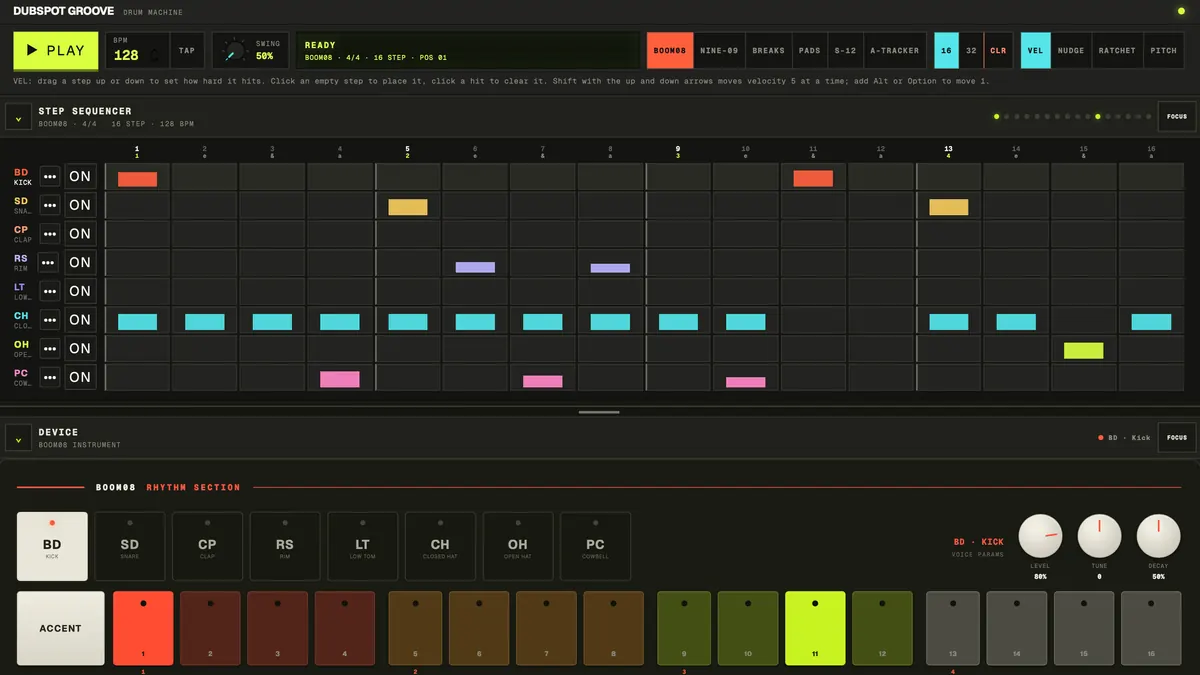
Pick the weakest elements and replace them outright. The drums usually go first. Mute the AI drum stem and program your own pattern that follows the same groove. Use your own kit or samples for the punch the AI version lacks.
For melodic parts, layer rather than replace. Keep the AI pad quiet underneath, then double the line with a synth you control. Quality instruments make an immediate difference here. Plugins from Plugin Boutique cover synths, drums, and effects across every budget.
Step 6: Add Your Own MIDI
Nothing makes a track yours faster than playing on it.
Find the song's key. Then add parts the AI never created: a counter-melody, a bassline with more movement, a chord stab on the offbeats. Even a simple eight-bar MIDI hook you wrote shifts the authorship of the whole piece.
Suno Studio can also extract MIDI from melodic stems for a small credit cost. Pull those in as editable MIDI and reshape them note by note. Otherwise, play parts in by ear against the stems.
Step 7: Process With Intent
Now mix like it's your record, because it is.
- EQ each stem to carve out its own space. Roll low end off everything except kick and bass.
- Compress drums and vocals for consistency and energy.
- Add depth with reverb and delay sends so the layers share a believable space.
- Use saturation to glue the AI stems and your new parts into one cohesive sound.
Reference a commercial track you admire. A/B against it often, and trust your ears over the meters.
Step 8: Bounce and Listen Cold
Export a rough mix, then walk away. Listen the next day on different speakers and headphones.
You'll hear problems you missed in the moment. Fix them, then repeat. Two or three honest revision passes separate a quick edit from a finished track.
A Word on Rights and Honesty
Always read the current terms of the generator you use. Commercial rights and download permissions have shifted across platforms through 2025 and 2026, so confirm what you're allowed to release before you publish or sell anything.
Be honest about your process too. Using AI as a sketching tool is legitimate. Pretending a generated track is fully your own composition is not. The workflow above tilts the balance heavily toward your own creative input, which is exactly the point.
Frequently Asked Questions
Do I need a paid tier to get stems?
Usually, yes. Stem export and advanced editing typically sit on paid plans. On Suno, stem and MIDI export live in Studio on the Premier plan. Free tiers often limit you to the full mixdown only, so check the current plan details on the platform itself.
Can I sell music I built from AI stems?
It depends on the platform's terms and your jurisdiction. Commercial and download rights have changed repeatedly, so verify the licensing for your specific plan before releasing or selling.
Why can't I export stems from Udio right now?
After its UMG partnership, Udio temporarily disabled downloads, including stems, while it builds out a licensed model. You can still edit inside Udio, but you can't currently pull those files into a DAW. Check Udio's help center for the latest status.
Why do separated stems sometimes sound slightly washy?
Because they're split out of an already-mixed track rather than rendered from isolated sources. Some artifacts are normal. Layering your own clean sounds on top hides them and improves the result.
What's the fastest way to make an AI track feel like mine?
Write and play your own MIDI part, then program your own drums. Those two moves add the most personal authorship in the least time, and they immediately distance the track from its generated origin.