How to Mix AI-Generated Stems: A Practical Cleanup and Mixing Guide
Mix AI-generated stems step by step. Clean artifacts, EQ and compress AI vocals and drums, fix phase and mono issues, then glue the mix together.

AI music tools have crossed a real threshold. You can prompt a full song into existence in seconds. But a finished-sounding generation and a finished mix are two different things, and that gap is where most tracks fall apart.
Plenty of producers skip the work in between. They export a stereo bounce, drop a limiter on it, and call it done. The result sounds flat, brittle, and obviously machine-made.
The fix is to work with stems. Platforms now export proper multitrack stems, and that changes everything. According to Suno's official documentation, Suno Studio lets you export a project as Full Song, a Selected Time Range, or as Multitracks, which delivers each track as a separate high-quality WAV file. Suno also offers a simple two-stem split (vocals and instrumental) or a detailed breakdown into individual instrument groups like vocals, drums, bass, guitar, and keys.
Once you have those stems, the job is the same as any mix. Clean, shape, balance, and glue. This guide focuses on the practical steps.
Why AI Stems Need Special Treatment
AI-generated stems carry a few predictable problems. Knowing them upfront saves you hours of guesswork.
First, artifacts. Generative models and stem-separation algorithms both leave behind digital residue. That shows up as faint hiss, metallic ringing, and a watery smearing in the high frequencies.
Second, phase and mono issues. Separated stems can drift out of phase with each other, which causes thin or hollow sound when summed to mono. Many club systems, phones, and smart speakers play in mono, so this matters more than people think.
Third, unnatural dynamics. AI vocals often sound loud and even, with the life squeezed out of them. The transients on AI drums can feel soft or smeared.
None of this is fatal. It just needs a methodical pass.
Step-by-Step: Mixing Your AI Stems
Step 1: Export Clean Stems at the Source
Start with the best possible files. Use a multitrack export rather than separating a stereo bounce after the fact.
Suno's official help notes that all Studio audio exports are delivered as WAV files, and you can pull individual clips as WAV via right-click. Always choose WAV over MP3. Compressed files bake in more artifacts before you even begin.
If your tool offers separate vocal, drum, bass, and instrument stems, grab all of them. More separation means more mixing control.
Step 2: Import and Time-Align Everything
Drop all stems onto separate tracks in your DAW. Line them up so they start at the exact same point, usually bar one, beat one.
This step is not optional. Misaligned stems cause phase cancellation, and the symptom is a weak, hollow low end. Zoom into the waveforms and snap every stem to the same start position.
Stems exported time-aligned should already match. Verify anyway. It takes ten seconds and prevents a frustrating mix.
Step 3: Clean Up Artifacts First
Do this before any creative moves. You want to shape a clean signal, not amplify noise.
- High-frequency hiss and smear: Use a gentle high-cut or a spectral de-noise tool to tame the watery top end on vocals and instrument stems.
- Metallic ringing: A narrow notch filter (a very thin EQ cut) targets the specific resonant frequencies that buzz or ring.
- Low rumble: Apply a high-pass filter around 30 to 40 Hz on everything except the kick and bass.
Work in solo, then check in context. Aggressive cleanup can hollow out a stem, so use the lightest touch that solves the problem.
Step 4: EQ the AI Vocal
AI vocals usually need carving more than boosting. Start subtractive.
Roll off everything below about 80 to 100 Hz, since there's no useful vocal energy down there. Sweep through the low mids around 200 to 400 Hz and cut any boxy buildup. If the vocal sounds harsh, hunt for problem frequencies between 2 and 5 kHz.
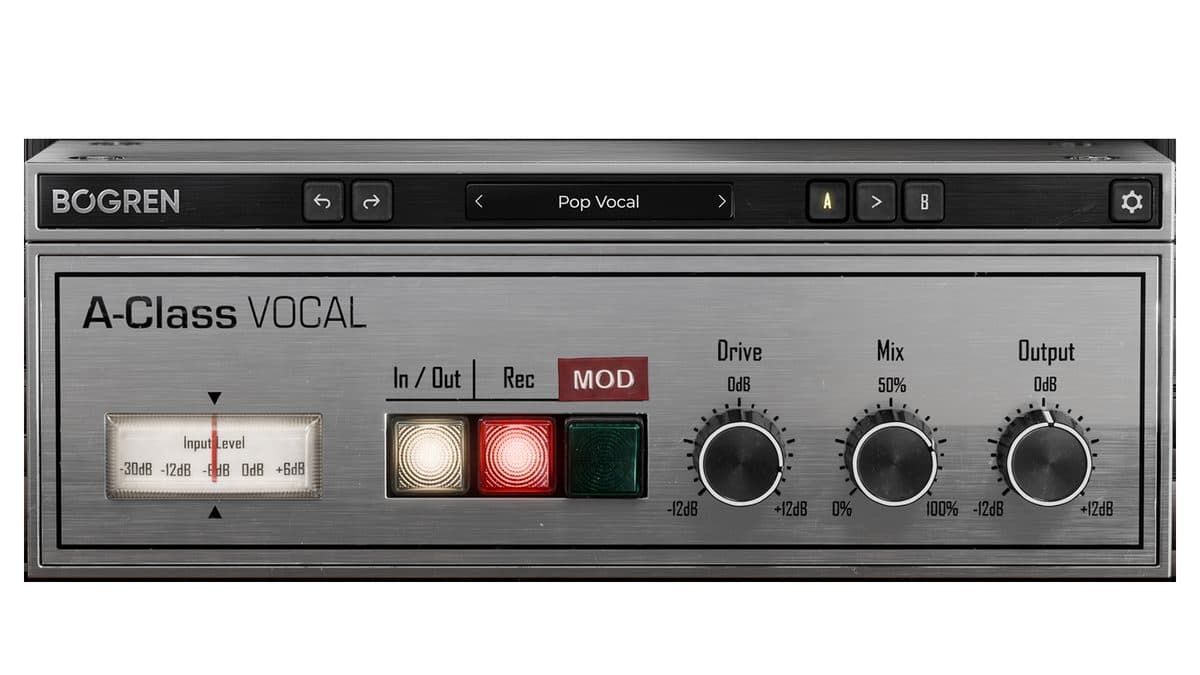
Then de-ess. Separation artifacts often exaggerate sibilance, so a de-esser around 5 to 8 kHz controls those harsh "s" sounds. Only add a high-shelf for air above 10 kHz if the vocal still has clean detail to lift. Bogren A-Class Vocal is the Type-A encode version of that air when a shelf turns harsh.
Step 5: Compress for Control and Glue
AI vocals can already sound flat, so don't over-compress. Use a moderate ratio around 2:1 to 4:1, with just 2 to 4 dB of gain reduction to even out the loudest words.
For drums, a faster attack and release tightens the groove. If the AI drums feel soft, a transient shaper restores the punch lost during generation or separation.
On bass, gentle compression keeps the low end steady and predictable. Consistency matters more than character here.
Step 6: Balance, Pan, and Build the Stereo Image
Now set levels. Pull the vocal to the front, sit the bass and kick in the center, and give the supporting instruments room around them.
AI stems sometimes come out very wide or oddly centered. Pan supporting elements left and right to open up space. Keep low-frequency content like kick and bass in mono, because wide bass collapses badly on mono systems.
A touch of reverb and delay helps glue an AI vocal into the track. Generated vocals often sound dry and detached, and shared space pulls everything together.
Step 7: Check Mono and Phase
Before you finish, sum your mix to mono. Most DAWs have a utility plugin or a master-bus mono button for this.
Listen for parts that disappear or get thin. If the bass or vocal drops out, you have a phase problem. Nudge the offending stem slightly, flip its polarity, or narrow its stereo width until it holds up in mono.
This single check separates amateur AI mixes from professional ones.
Step 8: Glue the Mix on the Master Bus
Finally, treat the full mix as one. Light bus compression with 1 to 2 dB of gain reduction helps the separate stems behave like one cohesive recording.
A gentle master EQ can address any broad tonal imbalance. Keep it subtle. The heavy lifting already happened on the individual stems.
Recommended Tools for the Job
You can do all of this with the stock plugins in any modern DAW. If you want dedicated tools, browse the mixing and mastering selection at Plugin Boutique for EQs, compressors, and de-noise utilities. For fresh layers to blend with your AI stems, sample libraries at Loopmasters and Loopcloud work well.
The goal is always the same. Use the tool that solves the problem in front of you, not the most expensive one.
The Bottom Line
Mixing AI-generated stems is real mixing. The source happens to be a model instead of a microphone, but the principles do not change.
Clean the artifacts. Align the phase. Carve with EQ, control with compression, then glue it together. Check mono before you commit. Do that consistently, and your AI tracks will stop sounding like demos and start sounding like records.
Frequently Asked Questions
Can I export real stems from AI music tools?
Yes. Suno Studio exports multitrack stems as separate WAV files, per its official documentation, and can split a song into a two-stem mix or detailed instrument groups like vocals, drums, bass, guitar, and keys. Always export WAV rather than MP3 to keep artifacts to a minimum.
Why do my AI stems sound thin when summed to mono?
That's phase cancellation. Stems that drift out of phase cancel each other when summed to mono. Time-align every stem to the same start point, then check the mix in mono and adjust width or polarity on any part that thins out.
How do I remove artifacts from AI-generated vocals?
Use a gentle high-cut or spectral de-noise to reduce hiss and watery smear, a narrow notch filter for metallic ringing, and a de-esser for exaggerated sibilance. Apply the lightest treatment that fixes the problem, since aggressive cleanup hollows out the sound.
Do I need expensive plugins to mix AI stems?
No. Stock DAW plugins handle EQ, compression, de-essing, and metering perfectly well. Dedicated tools like spectral de-noisers and transient shapers help, but they are a refinement, not a requirement.
Should I compress AI vocals heavily?
No. AI vocals often arrive already flat and even, so heavy compression makes them lifeless. Use a moderate ratio with only a few dB of gain reduction to control the loudest words while keeping natural dynamics.